Play Rocket League against CP Bot.
A small Windows app that starts an offline match in a few clicks. Play against CP Bot, or sit back and watch it play other bots.
BotLauncher.exe, about 13 MB. One file, no installer.
Windows 10 or 11, 64-bit.
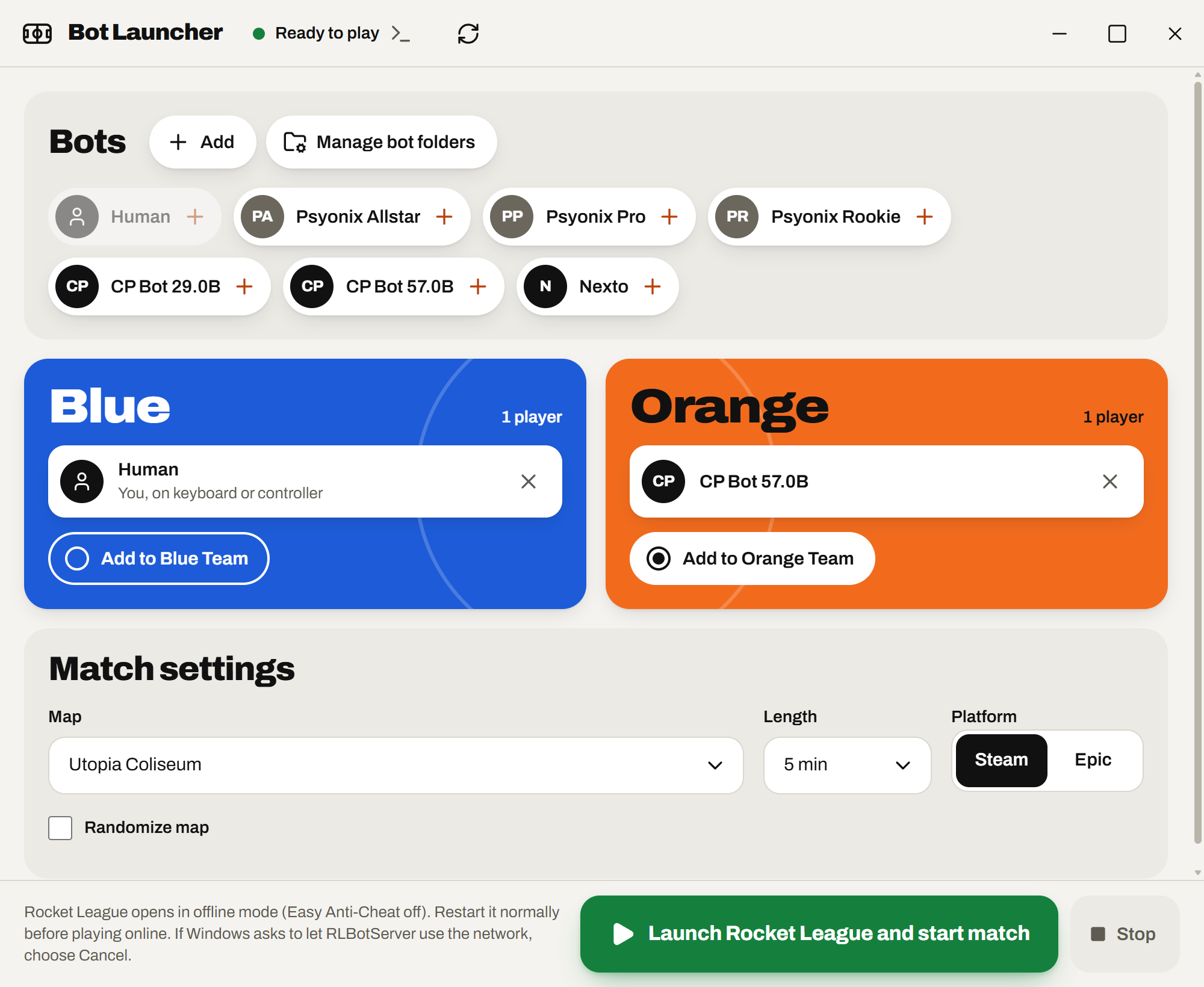
Pick who plays
- You vs CP Bot
- CP Bot vs Nexto
- CP Bot vs other CP Bot versions
- Psyonix bots: Allstar, Pro, Rookie
- 1v1 up to 3v3
Matches are offline and local, run through RLBot.
Set up in three steps
-
Download and open it
Get BotLauncher.exe and double-click it. It isn't code-signed yet, so your PC may ask you to confirm:
- Windows SmartScreen says "Windows protected your PC": choose More info, then Run anyway.
- Your browser says the file isn't commonly downloaded: choose Keep.
-
Let it download the bots
On first start the launcher downloads the bots and RLBot's server, about 1.25 GB. That takes a few minutes. The installed bots take about 4 GB.
-
Pick teams and press Launch
- Drag a bot from Bots onto Blue or Orange, or pick "Add to … Team" and click a bot. Add Human for yourself.
- Pick the map, the length and Steam or Epic.
- Press Launch.
Good to know
-
Offline mode
Rocket League opens in offline mode with Easy Anti-Cheat off. Restart it normally before playing online.
-
Already open?
If Rocket League is already open normally, close it first. The launcher tells you when this is the problem.
-
Network prompt
If Windows asks whether RLBotServer may use the network, choose Cancel. Matches still work.
You need
- Windows 10 or 11 (64-bit)
- Rocket League on Steam or Epic
- About 4 GB free
- Internet for the first download
Stays up to date
After setup, updates are automatic and small. A new CP Bot version is about 16 MB, and updates never install during a match. The launcher updates itself too, and shows a Restart button when it's ready.